

Getting started: build your first app
Build and publish your first Keboola app in about 10 minutes — describe it to Kai, watch it read your data and build a dashboard, then deploy it to a live URL. No code required.
Keboola apps are interactive web applications — dashboards, tools, even data narratives — that run inside your project, on top of your governed data. The app can only reach data you already have access to, there’s no separate hosting to set up, and you can build it just by describing what you want.
This walkthrough takes you from nothing to a live, deployed dashboard in about 10 minutes, using Kai. You won’t write any code.
Apps go well beyond dashboards — you describe what you want and Kai builds it, whether that’s a dashboard, an internal tool, or a scrollable data narrative. For the range of what’s possible, see Beyond dashboards. This page builds a simple dashboard so you can learn the flow; the same steps produce any of them.
What you’ll need
Section titled “What you’ll need”- A Keboola project with Kai available.
- At least one table in Storage — Kai reads your data directly, so it works with whatever you already have.
- A few minutes. Building in a development branch keeps your production project untouched while you experiment.
Step 1 — Open Apps and start a new app
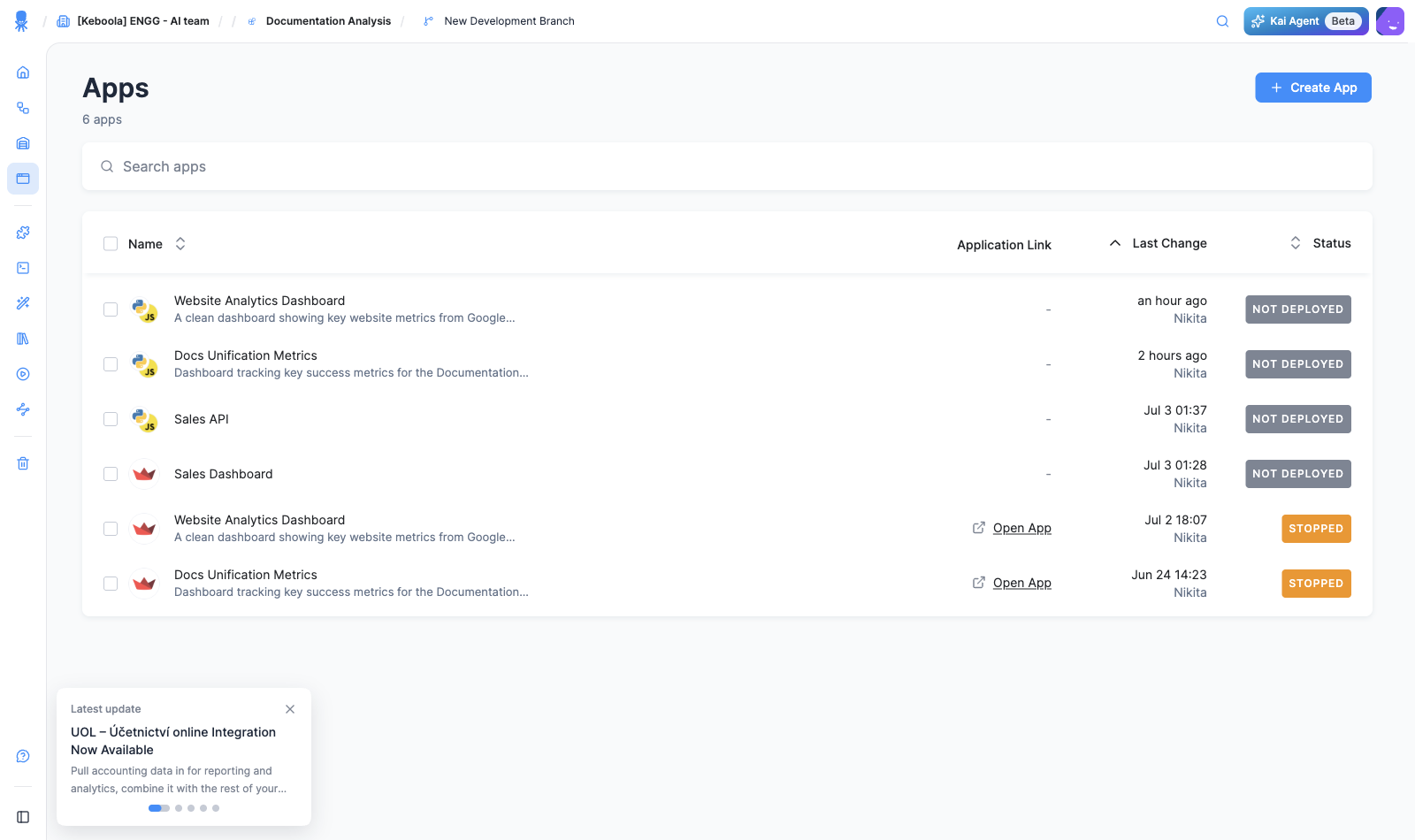
Section titled “Step 1 — Open Apps and start a new app”In your project, open Apps from the left navigation, then click + Create App.
You land on the Build web apps from your Keboola data screen. It leads with a single prompt — “Describe what you want to build…” — and, below it, manual Streamlit and Python / JS options for when you’d rather set things up yourself.
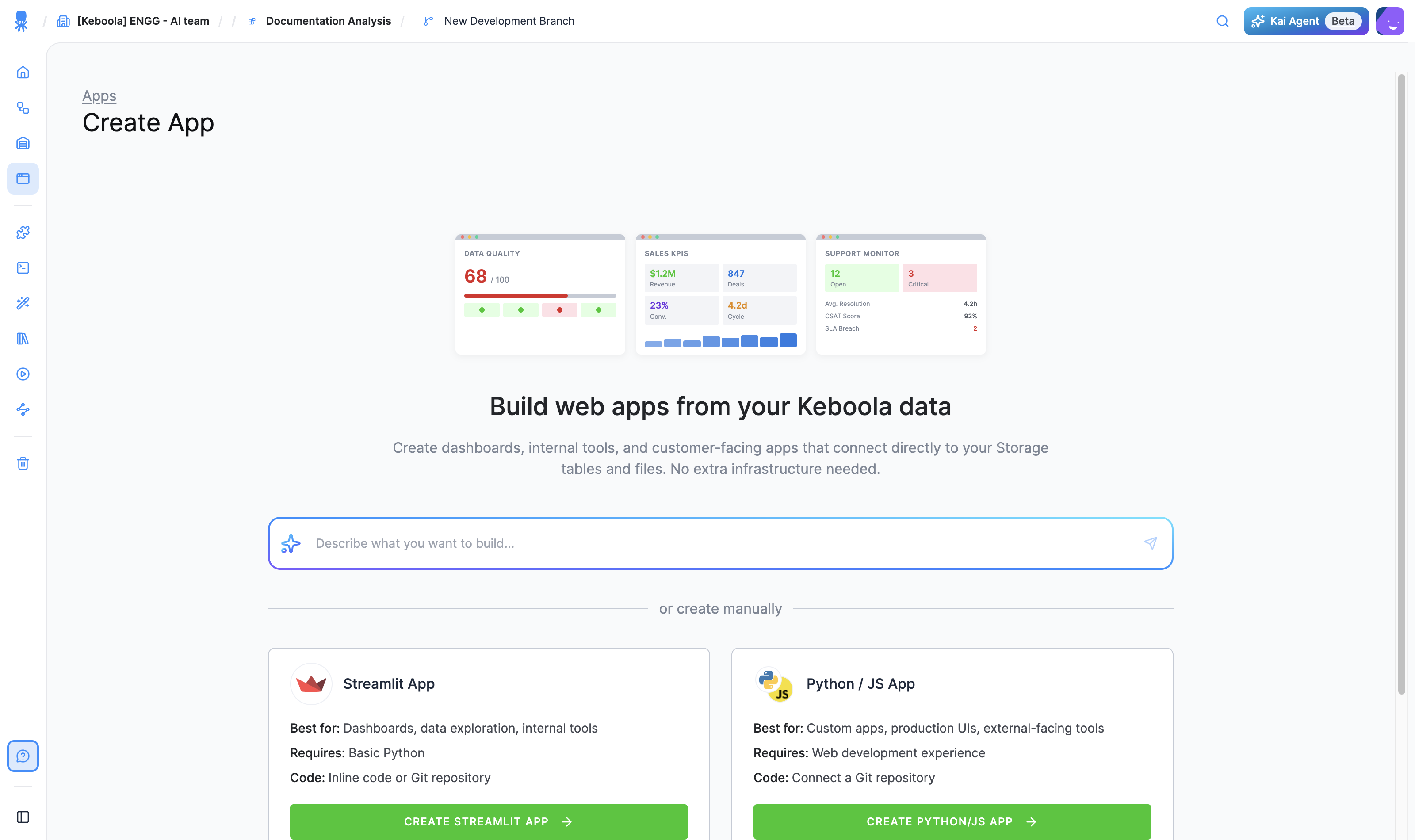
Step 2 — Describe the app you want
Section titled “Step 2 — Describe the app you want”Type what you want in plain language. Name the kind of app, what it should show, and keep it simple for your first one. For example:
Build a simple dashboard from my Storage data: a title, three key metrics as big number tiles, and one bar chart. Keep it clean and easy to read.
The more specific you are — the data, the charts, the audience — the closer Kai’s first version will be.
Step 3 — Watch Kai read your data and build
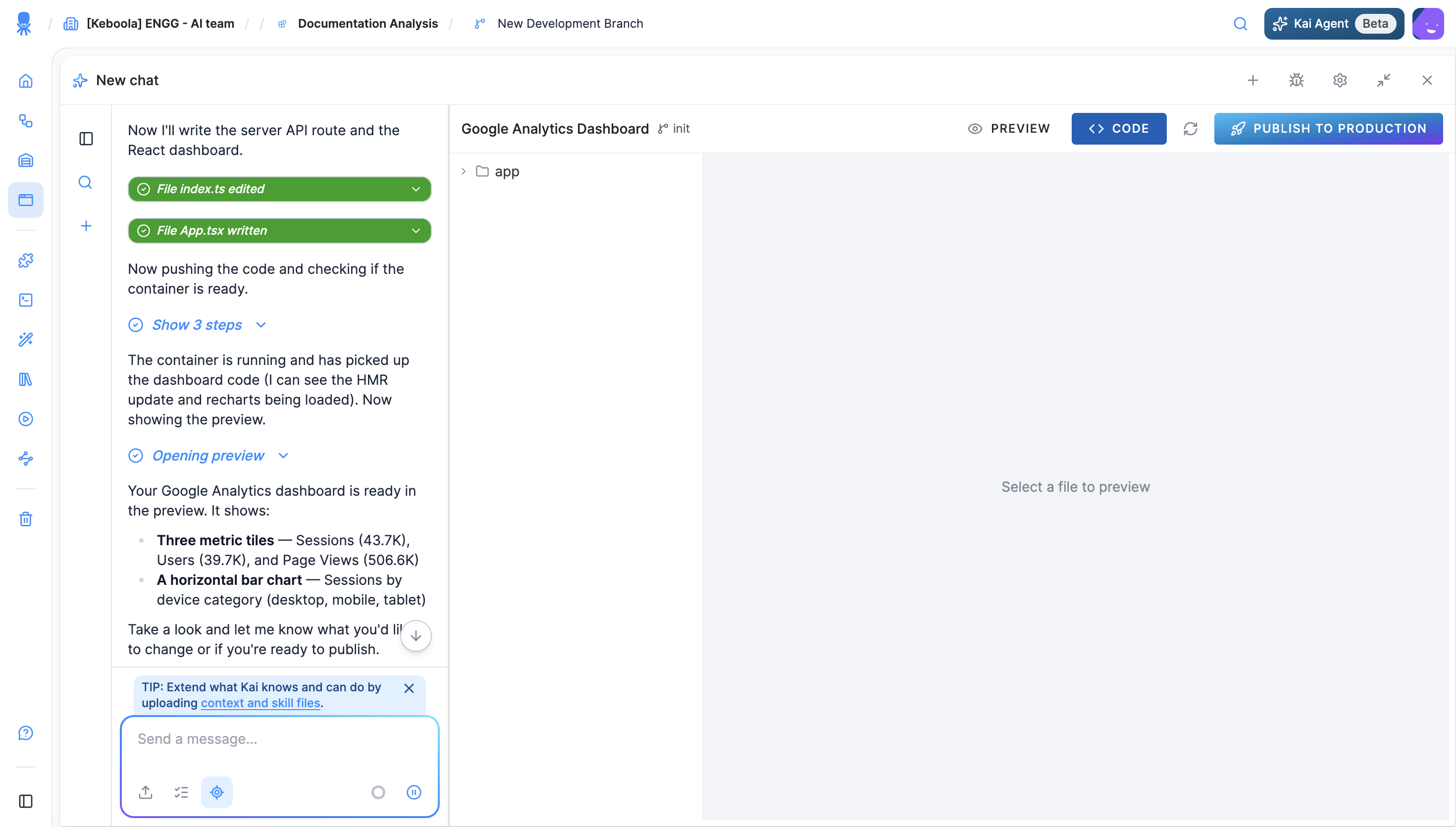
Section titled “Step 3 — Watch Kai read your data and build”Kai gets to work. It explores your Storage on its own — listing buckets and reading table details — then writes the app: you see each step in the chat (File index.ts edited, File App.tsx written) while Kai pushes the code and starts a development container.
In our run, Kai discovered the project’s Google Analytics tables and built a Google Analytics Dashboard: sessions, users, and page views as tiles, plus a “sessions by device” bar chart.
Step 4 — Preview the draft
Section titled “Step 4 — Preview the draft”The build opens a split-screen builder: your chat with Kai on the left, and the app as a draft on the right — toggle between a live Preview and the Code view of its files. The draft hot-reloads as Kai edits, and building it doesn’t touch your production project. Ask for changes in the chat until it looks right.
Kai finishes with next-step suggestions: Publish to production, Make changes, or type your own.
Step 5 — Publish to production
Section titled “Step 5 — Publish to production”When you’re happy with the draft, click Publish to Production. The app is deployed and available at its own URL; you’ll find it in Apps, with its settings on the app’s configuration page.
By default the app is protected with basic authentication — open it from the configuration page to see the login credentials. To change who can access it (public, a password, SSO, GitHub, and more), see Authentication.
Open the URL and your app is live — running on your governed data, served from its own address:
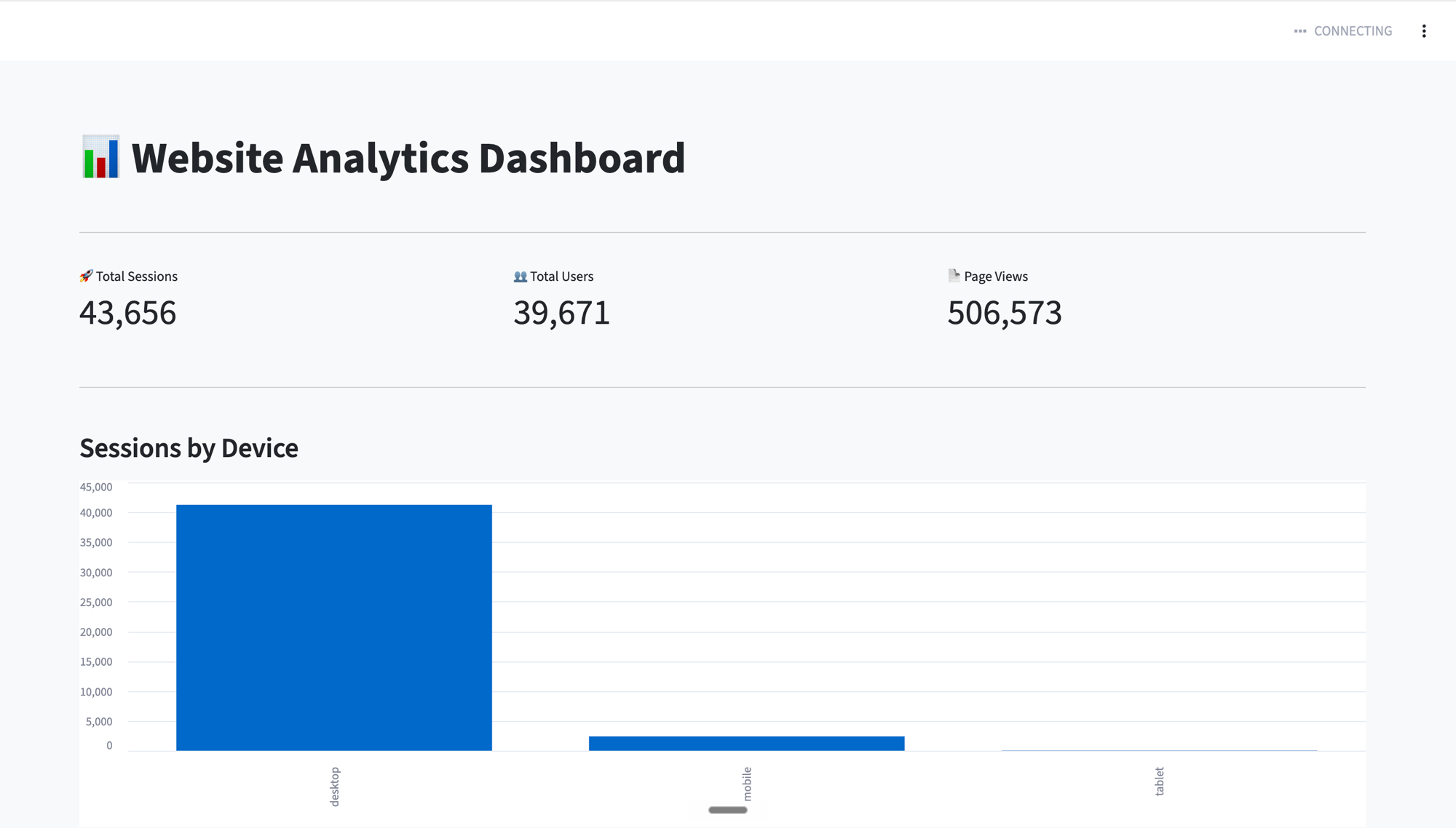
That’s it — you’ve built and published your first app. You described what you wanted, Kai read your governed data, planned, and deployed it — and you never picked a framework. The same loop builds dashboards, internal tools, data narratives, and more; for the concepts behind it, see What are Keboola apps.
What’s next
Section titled “What’s next”- Control who can open it → Authentication
- Share it with your team → Publish and share
- Prefer to click through it yourself? → Create an app manually
- Want full control over the code? → Build locally
- See more of what people build → Beyond dashboards
- The concepts behind it → What are Keboola apps